
Create the two Google Maps Platform API keys used by Menushell, restrict each key correctly, and add them to the matching Google Maps fields in Store Settings.
Start in Google Cloud Console
- Go to Google Cloud Console and sign in to the Google account that will manage the restaurant’s Maps configuration.
- At the top of Google Cloud Console, open the project selector and click Create Project.
- Click New Project, enter a clear project name for the restaurant, and create the project.
- Open the new project. Make sure Google Maps Platform is available and enable the APIs required below.
- Open APIs & Services → Credentials, then click Create credentials → API key to begin creating the first key.
The required APIs must be enabled in the project before they can be selected under API restrictions. Menushell uses two separate keys: a browser key for Maps and Places, and a server key for routing and geocoding.
Create the browser API key
Create an API key in Google Cloud and give it a clear name such as Google Maps API Key. Under API restrictions, select only:
- Maps JavaScript API
- Places API (New)
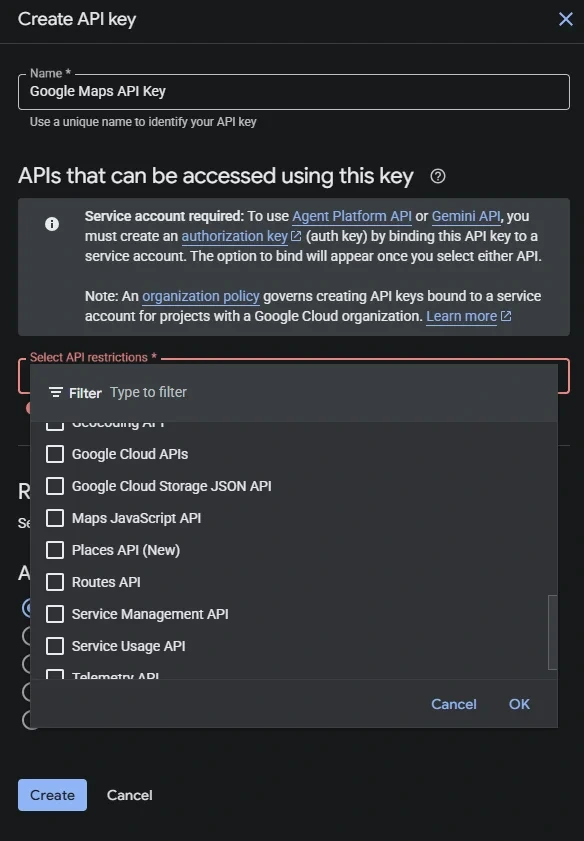
Restrict the browser key to the restaurant website
Under Application restrictions, choose Websites. Add the restaurant website to the website restrictions and save the key.

Use the restaurant’s real website restriction for the live key. A blank website-restriction list can allow the browser key to be used from other websites.
Create the server API key
Create a second API key and give it a clear name such as Google Maps Server API Key. Under API restrictions, select only:
- Geocoding API
- Routes API
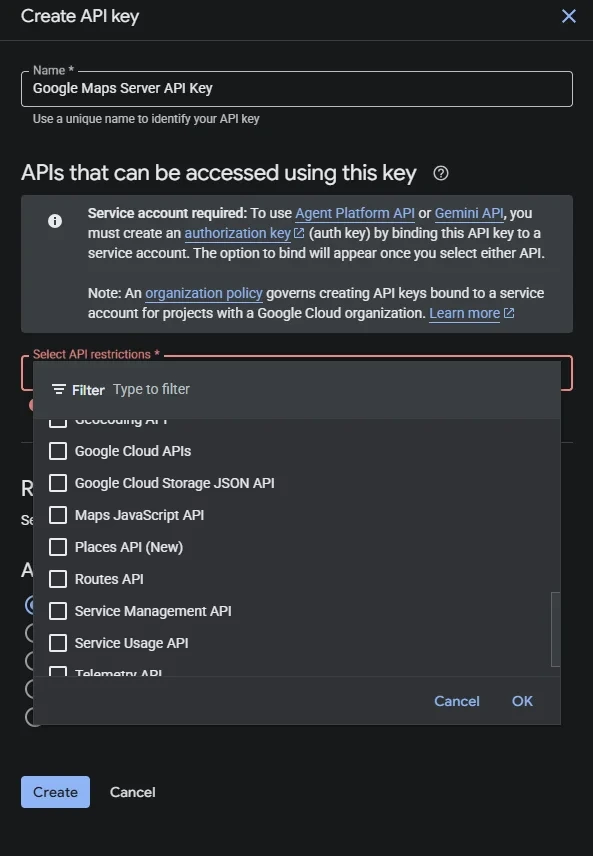
Restrict the server key by IP address
Under Application restrictions, choose IP addresses. Add the public IP address of the server hosting the restaurant website, then save the key.

The Google Maps Server API Key is for server-side requests. Do not place it in public page code or use it as the browser key.
Add both keys to Menushell
Open Owner Dashboard → Store Settings and find the Google Maps section.
- Paste the website-restricted browser key into Google Maps API Key.
- Paste the IP-restricted server key into Google Maps Server API Key.
- Save Store Settings.
Saved server credentials are not displayed again. If the field shows that a key is already saved, leaving it blank keeps the existing value.
Test the configuration
Test restaurant address search and the customer delivery-address verification flow. Google notes that restriction changes can take a few minutes to take effect, so allow a short period before troubleshooting a newly created or changed key.
Configuration checklist
| Menushell field | Allowed APIs | Application restriction |
|---|---|---|
| Google Maps API Key | Maps JavaScript API Places API (New) |
Websites |
| Google Maps Server API Key | Geocoding API Routes API |
IP addresses |
Confirm that the required APIs are enabled, the browser restriction matches the live restaurant website, the server restriction matches the hosting server’s public IP, and each key is entered in the correct Menushell field.