
Open the shared Order Details view from Live Orders or Order History and understand the order status, items, totals, customer, fulfilment, payment and status history shown there.
Open Order Details
You can reach the same Order Details card from either order area:
- From Orders, select View details on a Live Order.
- From Order History, select View on the required previous order.
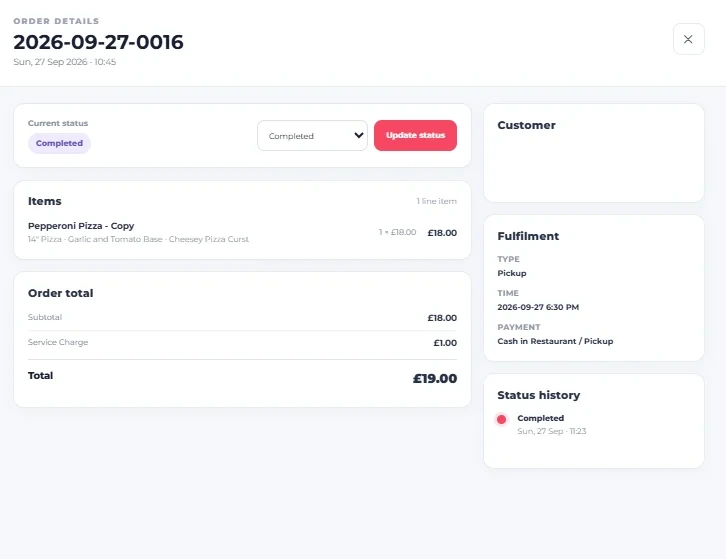
Identify the order
At the top of the card, Menushell displays the order number together with the order’s date and time.
Check the current status
The Current status area shows the order’s present status.
Update the status
Use the status selector in the Current status area to choose the required status, then select Update status to apply the change.
For the wider Live Orders workflow and the verified list of available order statuses, see How to Manage Live Orders.
Review the ordered items
The Items section shows the products included in the order. The displayed information can include the item name, quantity, unit price, line total and the item’s selected options or modifiers.
Review the order total
The Order total section provides the financial breakdown shown for the order. In the captured example this includes Subtotal, Service Charge and the final Total.
Review the customer information
The Customer card displays the customer information stored with the order, including the customer’s name, phone number and email address when available.
Check fulfilment
The Fulfilment card shows the order’s fulfilment information, including Type and Time. For example, the fulfilment type may be Pickup or Delivery.
Check the payment method
The same Fulfilment card displays the recorded Payment method for the order.
Review status history
The Status history card records the displayed order-status history together with its date/time information, helping you review the status activity shown for that order.
Close Order Details
Select the × button in the upper-right corner when you are finished reviewing the order.
You can now open Order Details from either Live Orders or Order History and understand the key information displayed for an individual order.