
Moderate customer reviews by hiding published feedback from the public restaurant website, publishing hidden reviews again, and permanently deleting a review when necessary.
Before you begin
Open Reviews from the Owner Dashboard and locate the review you want to moderate. Use Search, Rating, Status and Sort by when needed to find the correct review.
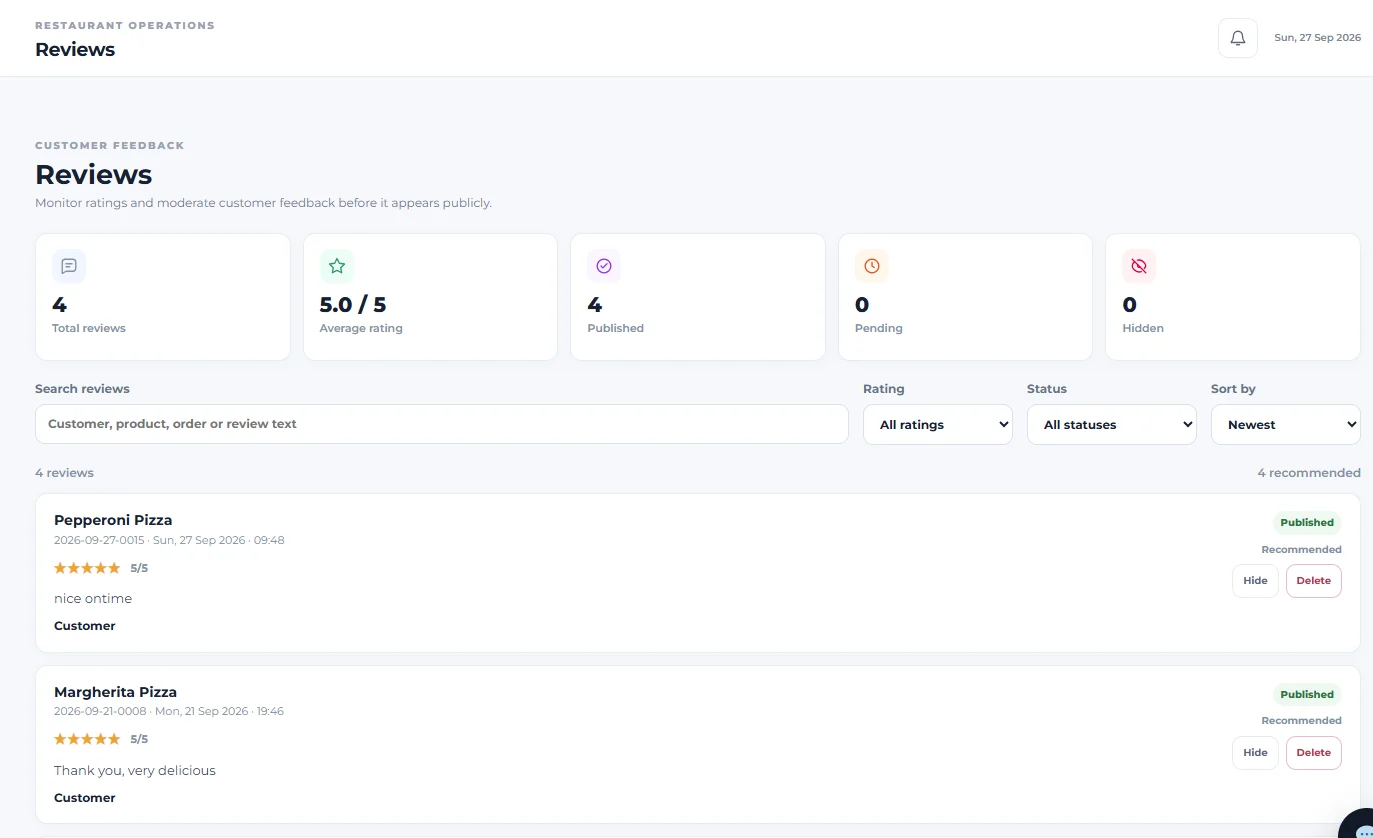
Hide a published review
Select Hide on the review you want to remove from the public restaurant website.
When a review is hidden, it disappears from the public website but remains stored in the Reviews dashboard. Its action changes from Hide to Publish.
Hide is moderation, not deletion. The review remains available in the dashboard and can be published again later.
Publish a hidden review again
Locate the hidden review and select Publish. This restores the review to the published state so it can appear publicly again. The moderation action then returns to Hide.
Check Hidden and Published totals
The Reviews dashboard tracks Published and Hidden separately. After hiding or publishing a review, use these totals and the Status filter to verify the review’s current state.
Delete a review permanently
Select Delete only when the review should be permanently removed. Menushell displays a confirmation before deletion.
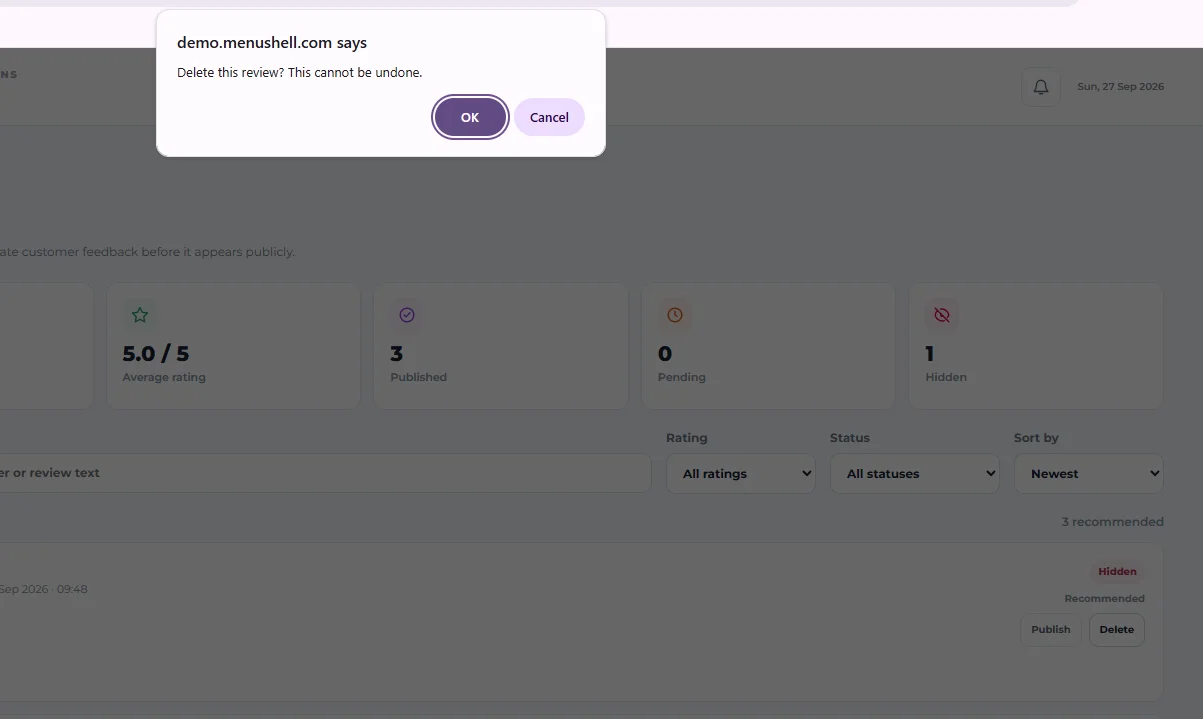
The confirmation states: “Delete this review? This cannot be undone.” Select OK only when you are certain the review should be permanently deleted.
Cancel a deletion
Select Cancel in the confirmation dialog when you do not want to delete the review. The review remains unchanged.
Hide or Delete?
Use Hide when the review should stop appearing publicly but may need to be restored later. Use Delete only when the review should be permanently removed.
How to check moderation worked
After hiding a review, confirm that it remains in the Reviews dashboard as Hidden and no longer appears on the public restaurant website. After publishing it again, confirm it returns to the published state and public website. After deletion, confirm the review is no longer present in the dashboard.
The review has been moderated using the appropriate Hide, Publish or Delete action.
If you hid the wrong review
Find the review in the dashboard, use the Status filter for Hidden if needed, and select Publish to restore it.
If a hidden review is still visible publicly
Confirm that the review shows as Hidden in the dashboard, then refresh the public restaurant website and check again.
If you are unsure whether to delete
Use Cancel in the deletion confirmation. You can use Hide instead when you want to remove the review from public view without permanently deleting it.