
Use the Delivery screen to monitor delivery workload, find delivery orders, review delivery information, open order details and update delivery-order statuses.
Open Delivery
From the restaurant dashboard, open Delivery. The Delivery screen brings delivery orders, dispatch timing and active deliveries together in one place.
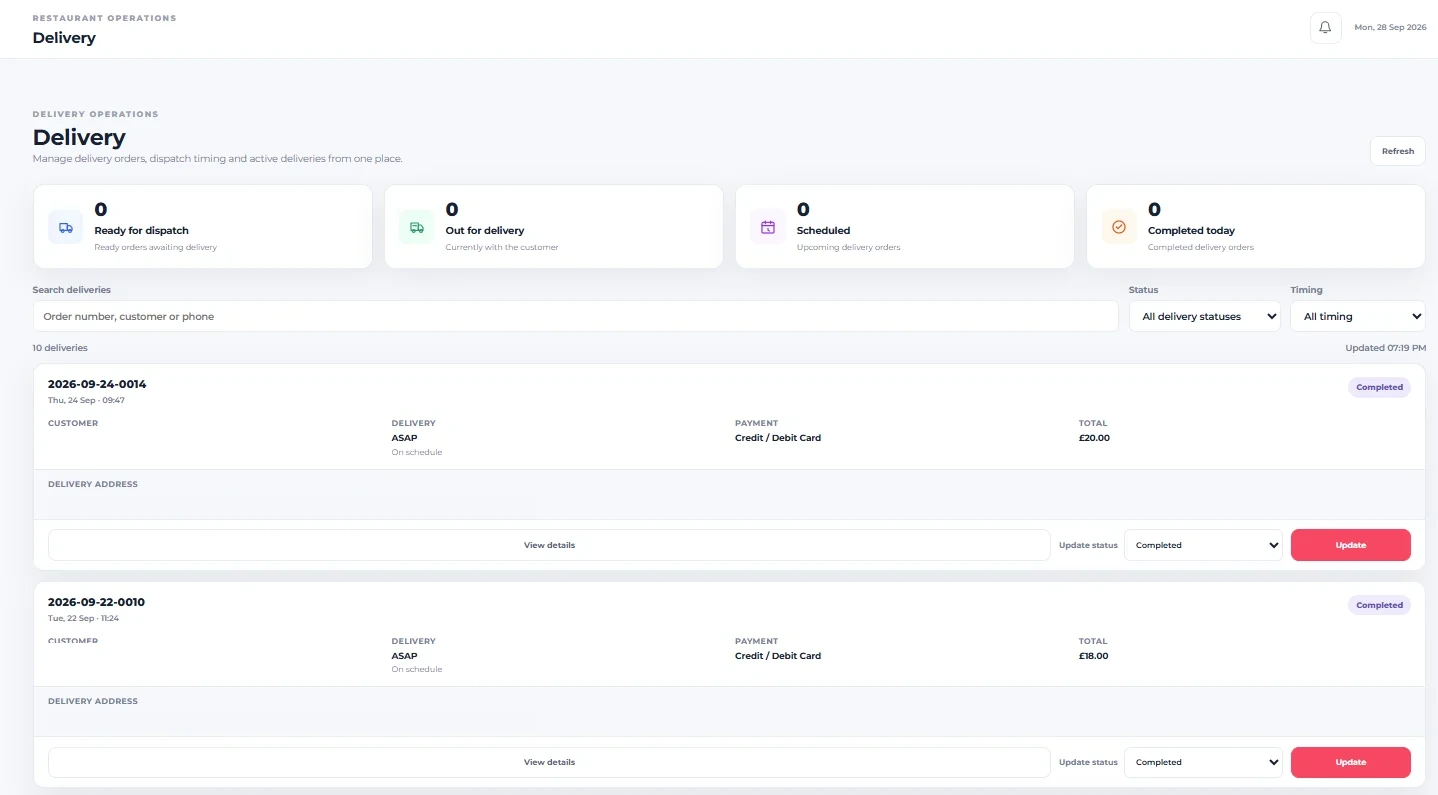
Review the delivery summary
At the top of the screen, four summary cards provide a quick view of the delivery workload:
- Ready for dispatch — ready orders awaiting delivery.
- Out for delivery — orders currently with the customer delivery workflow.
- Scheduled — upcoming delivery orders.
- Completed today — completed delivery orders for today.
Refresh Delivery
Select Refresh to reload the Delivery view. The screen also displays an Updated time above the order list.
Search deliveries
Use Search deliveries to find a delivery using an order number, customer or phone.
Filter by delivery status
Use the Status selector to narrow the displayed delivery orders. Leave it on All delivery statuses when you want to include all available delivery statuses.
Filter by timing
Use the Timing selector to narrow deliveries by timing. Leave it on All timing when you do not want a timing restriction.
Check the delivery count
The screen displays the number of deliveries in the current result set, helping you see how many delivery records are being shown.
Review a delivery card
Each delivery card identifies the order and shows its date/time and current status. The card also displays key information under Customer, Delivery, Payment and Total.
Check delivery timing
The Delivery area can show timing information such as ASAP and whether the order is On schedule.
Check the delivery address
The Delivery address area shows the destination recorded for that delivery order. Treat this information as customer data and only use it for the restaurant’s legitimate delivery workflow.
Open order details
Select View details to open the individual Order Details view. The same Order Details interface is documented in How to View and Understand Order Details.
Update a delivery order status
Use the Update status selector on the delivery card to choose the required status, then select Update to apply the change.
Search, Status and Timing can help narrow a busy delivery list so you can focus on the deliveries that need attention.
You can now use the Delivery screen to monitor delivery workload, find an order, review its delivery information, open its details and update its status.
If a delivery is not visible
Review the search text, Status and Timing filters, then select Refresh. Return the selectors to All delivery statuses and All timing if you want the broadest delivery view.