
Create or update a Menu Recipe by selecting a menu item and mapping the ingredients and quantities used by that item.
Open Menu Recipe
From the ingredients area, open Menu Recipe. This screen connects menu items with the inventory ingredients used in their recipe.
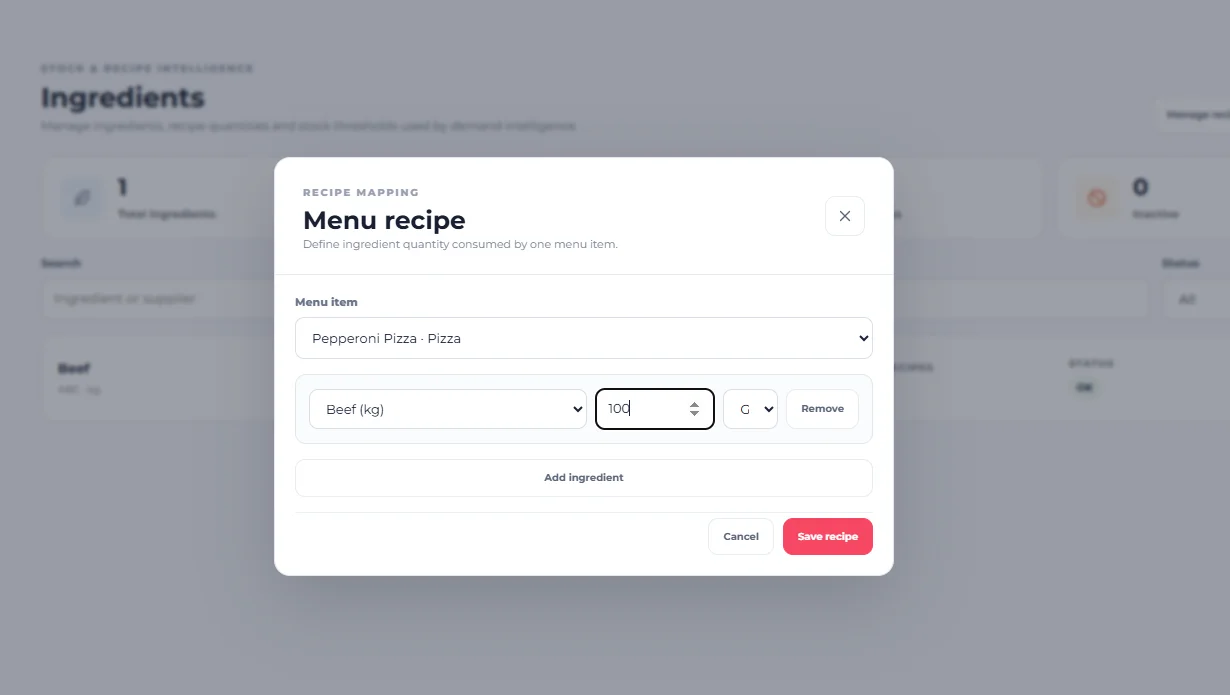
Select the menu item
Use Menu item to choose the product whose recipe you want to configure. The captured screen shows Beef Burger as the selected example.
Select an ingredient
In an ingredient row, use the Ingredient selector to choose an inventory ingredient. The captured recipe shows Beef.
Enter the ingredient quantity
Enter the amount used by the selected menu item in the Quantity field.
Check the measurement unit
The ingredient row also displays its measurement Unit. In the captured example, Beef is measured in kg.
Enter the recipe quantity with the ingredient’s displayed unit in mind so the recipe represents the amount of that ingredient used by the menu item.
Add another ingredient
Select Add ingredient to add another ingredient row to the recipe. Use this when a menu item requires more than one tracked inventory ingredient.
Remove an ingredient row
Select Remove on an ingredient row when that ingredient should no longer be included in the recipe you are editing.
Save the recipe
Review the selected menu item, ingredients, quantities and units, then select Save recipe to save the mapping.
Cancel without saving
Select Cancel if you do not want to save the recipe changes.
The Menu Recipe screen uses inventory ingredients that have already been created. Ingredient stock, reorder, cost and supplier settings are managed through the ingredient configuration workflow.
You can now map a menu item to its inventory ingredients, define the quantity used for each ingredient and save the Menu Recipe.