
Use the Inventory screen to monitor ingredient stock, reorder risk, inventory value and recent stock movements.
Open Inventory
From the restaurant dashboard, open Inventory. The screen provides one operational view for stock levels, reorder risk and inventory value.
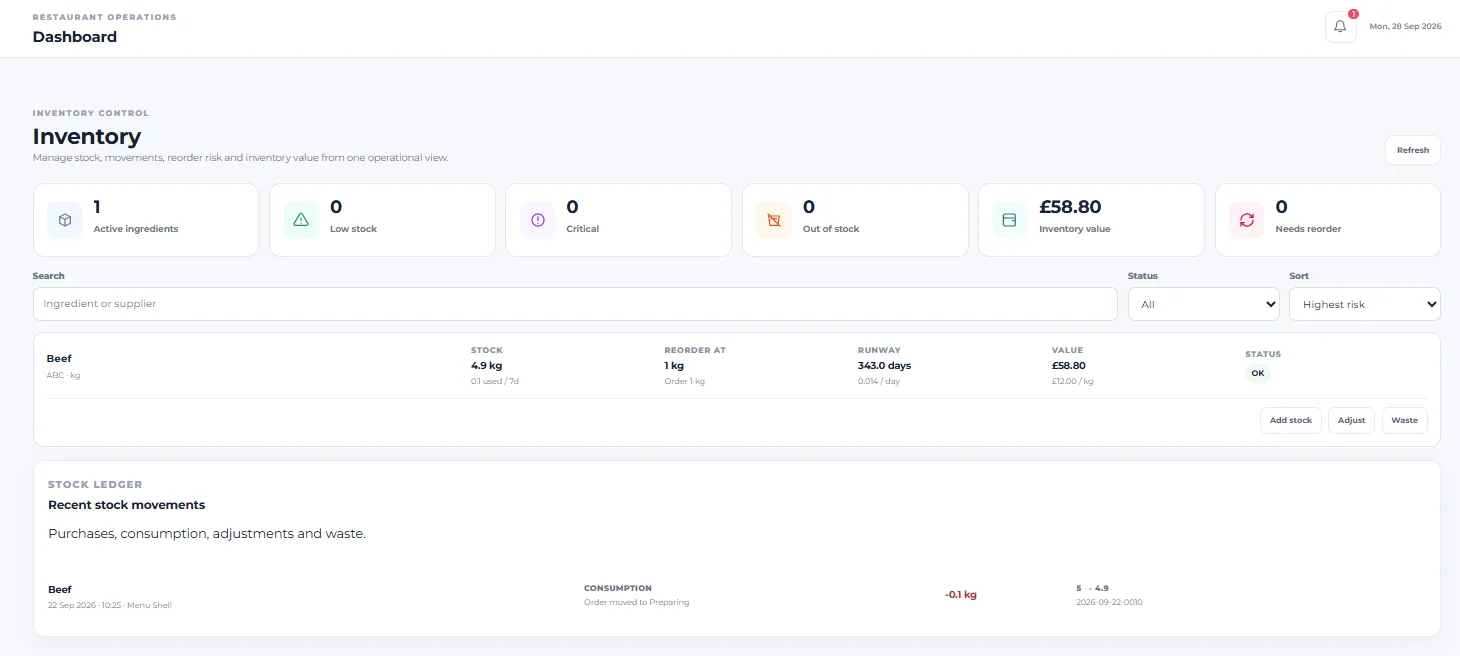
Review the inventory summary
The summary cards at the top of Inventory provide a quick operational snapshot:
- Active ingredients — the active ingredients currently represented in inventory.
- Low stock — ingredients currently identified as low stock.
- Critical — ingredients currently identified as critical.
- Out of stock — ingredients currently identified as out of stock.
- Inventory value — the displayed value of the inventory.
- Needs reorder — ingredients currently identified as needing reorder.
Refresh Inventory
Select Refresh to reload the Inventory view when you need the latest displayed inventory information.
Search ingredients
Use Search to find an inventory record by ingredient or supplier.
Filter by status
Use the Status selector to narrow the ingredient list. Leave it on All when you want the broadest inventory view.
Sort inventory risk
Use the Sort selector to change the order of the ingredient list. The captured Inventory screen shows Highest risk as the selected sorting option.
Understand an ingredient row
Each ingredient row presents the ingredient name and unit together with operational inventory information:
- Stock — the currently displayed stock quantity, with recent usage information shown underneath.
- Reorder at — the displayed reorder threshold, with the configured order quantity shown underneath.
- Runway — the estimated stock runway shown in days, with the displayed daily usage rate underneath.
- Value — the displayed stock value, with unit cost underneath.
- Status — the ingredient’s current inventory status.
The captured ingredient is shown with an OK status. Values in your restaurant will depend on your own ingredient configuration and stock activity.
Review recent stock movements
The Stock Ledger contains Recent stock movements and is described on the screen as covering purchases, consumption, adjustments and waste.
Understand a consumption movement
The captured ledger shows a Consumption entry with the note Order moved to Preparing. It also shows the stock quantity changing from its previous value to its new value.
Each ingredient row also provides Add stock, Adjust and Waste actions. Those workflows are documented separately so their forms and effects can be explained accurately.
You can now use Inventory to monitor stock health, identify reorder risk, find ingredients and review recent stock movements.