
Open the Communication Center from a customer profile and prepare a one-to-one customer message using the available Email or WhatsApp communication channel.
Open Send message from the customer profile
Open the customer from Customers and select Send message. Menushell opens the Communication Center on the General Messages tab.
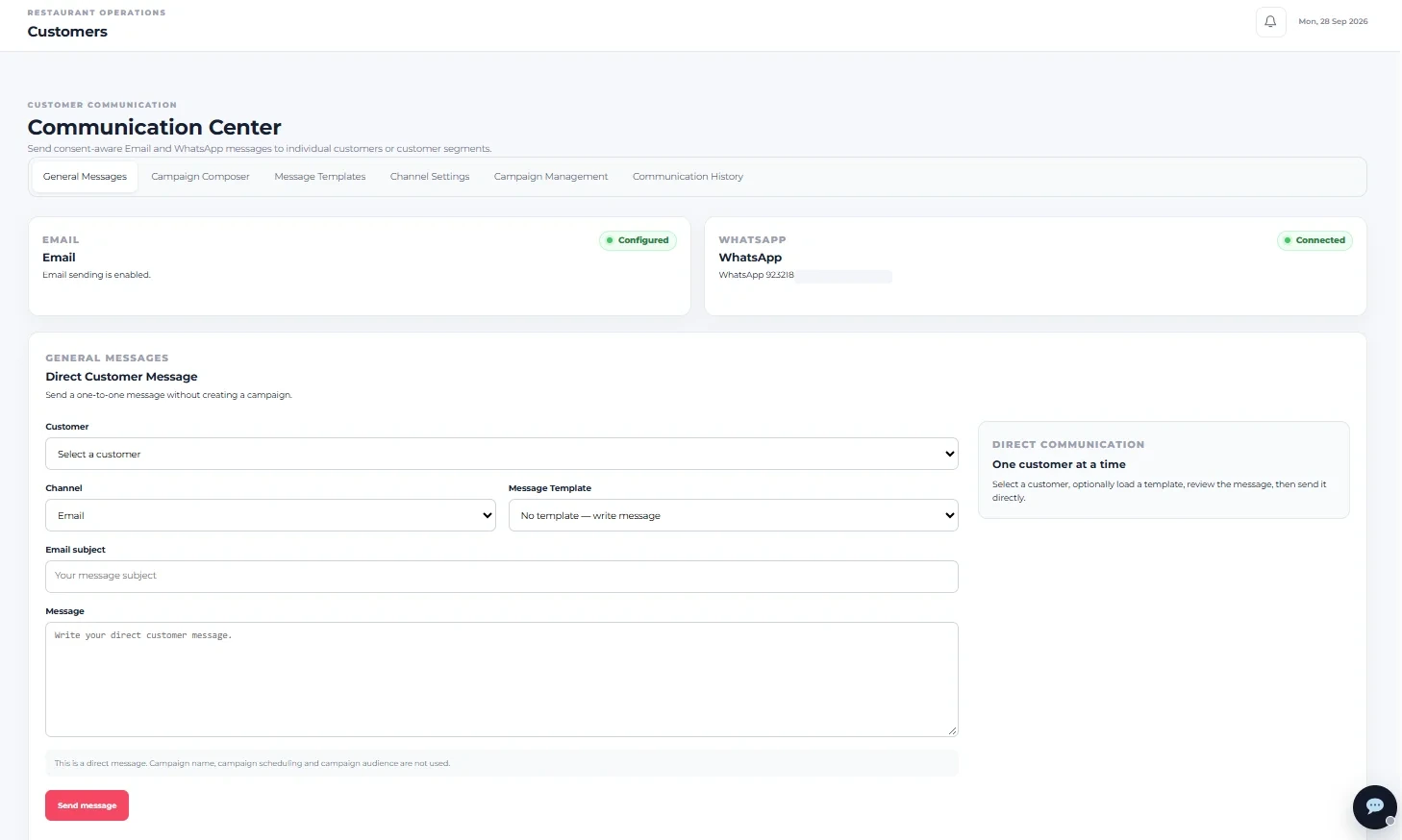
Check communication availability
At the top of Communication Center, check the displayed channel status. The captured screen shows Email as Configured and WhatsApp as Connected.
Understand Direct Customer Message
This area is designed for a one-to-one message. The page instructs you to select a customer, optionally load a template, review the message and then send it directly.
Select the customer
Use the Customer selector to choose the customer who should receive the direct message.
Select the channel
Use Channel to choose the communication channel available for the message. The captured screen shows Email selected, while Communication Center also displays the restaurant’s WhatsApp connection status.
Choose a Message Template
Use Message Template when you want to load an available template. The screen also provides No template — write message so you can compose the message directly.
Enter the Email subject
When composing through the displayed Email workflow, enter the message subject in Email subject.
Write the message
Enter the direct customer message in the Message field. Review the customer, channel, subject where applicable, template selection and message content before sending.
The page states that campaign name, campaign scheduling and campaign audience are not used for this direct-message workflow.
Send the message
After reviewing the message details, select Send message to use the direct communication workflow.
Other Communication Center tools
Communication Center also contains Campaign Composer, Message Templates, Channel Settings, Campaign Management and Communication History. These are separate functions and are documented independently from this one-to-one messaging guide.
You can now move from a Customer Profile into Communication Center and prepare a direct one-to-one customer message.
If a communication channel is unavailable
Check the channel status shown at the top of Communication Center before attempting to use it. A channel that is not configured or connected may require attention in its relevant communication settings.
If you opened Communication Center directly
Stay on General Messages, then use the Customer selector to choose the intended recipient before composing the direct message.