
Use the Customers screen to understand customer totals, search and sort the customer list, read customer activity and spending information, and open an individual customer profile.
Open Customers
Open Customers from the Owner Dashboard. This screen gives you an overview of your customer base and helps you quickly find a specific customer.
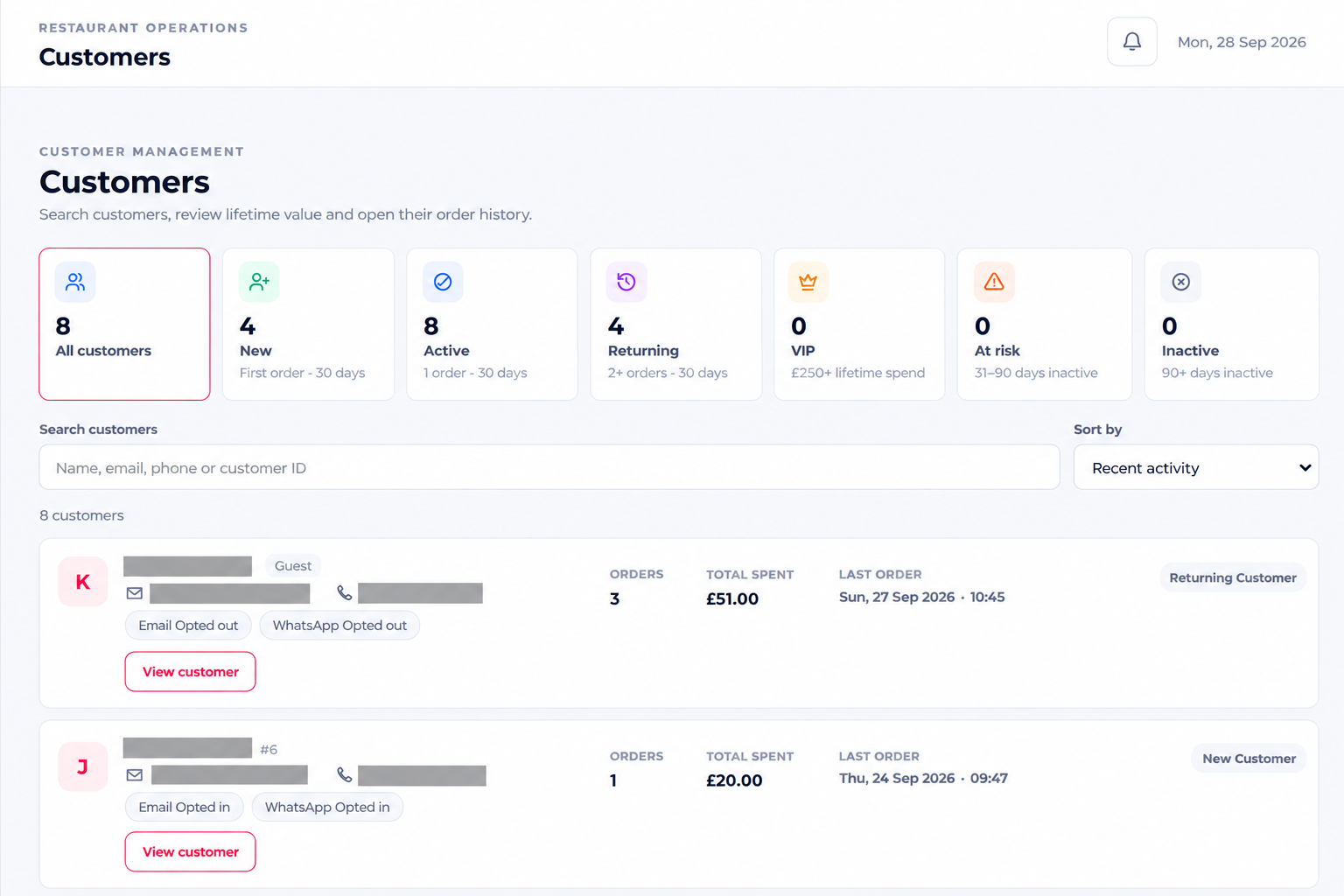
Understand the customer summary
The summary cards give you a quick view of the customer groups tracked by Menushell. The screen identifies Total Customers together with customer classifications including New, Active, Returning, VIP, At Risk and Inactive.
Understand customer classifications
The Customers screen explains the classification rules used for the customer list:
- New — first order within 30 days.
- Active — 1 order within 30 days.
- Returning — 2+ orders within 30 days.
- VIP — £250+ lifetime spend.
- At Risk — 31–90 days inactive.
- Inactive — 90+ days inactive.
Search for a customer
Use the customer search field to locate a customer by name, email, phone number or customer ID. Enter the information you know and review the matching customer records.
Sort the customer list
Use the sorting control to change the order of the customer list. This can help you review the customer base from the perspective most useful for the task you are completing.
Read a customer record
Each customer record brings together the customer’s contact details and account activity. Depending on the customer, the record can show communication opt-in indicators, order activity, lifetime spending, last-order information and the customer’s current classification.
Check communication opt-in status
Customer records can show Email and WhatsApp opt-in indicators. Use these indicators to understand the communication status displayed for that customer.
Review orders and spending
Use the Orders, Total Spent and Last Order information to understand the customer’s ordering activity directly from the list before opening the full customer profile.
Open a customer profile
Select View customer on the required record when you need to see the customer’s detailed profile. Detailed customer-profile functions are covered separately so this guide stays focused on finding and reading customers from the main Customers screen.
You can now use the Customers screen to understand the customer overview, locate a customer and read the key information shown in the customer list.
If you cannot find a customer
Clear the current search, check the spelling or contact detail you entered, and search again using another available identifier such as the customer’s name, email, phone number or customer ID.