
Duplicate an existing menu item, review the copied configuration in the Edit menu item side modal, make the new product unique and save it safely.
Before you begin
Use Duplicate when a new product is similar to an existing item and you want to reuse its setup instead of starting from an empty product form. Choose the source product carefully because its existing configuration is used as the starting point for the copy.
Step 1 — Find the item you want to duplicate
Open Menu. Use Search menu or the Category filter if necessary, then locate the correct source product.
Step 2 — Select Duplicate
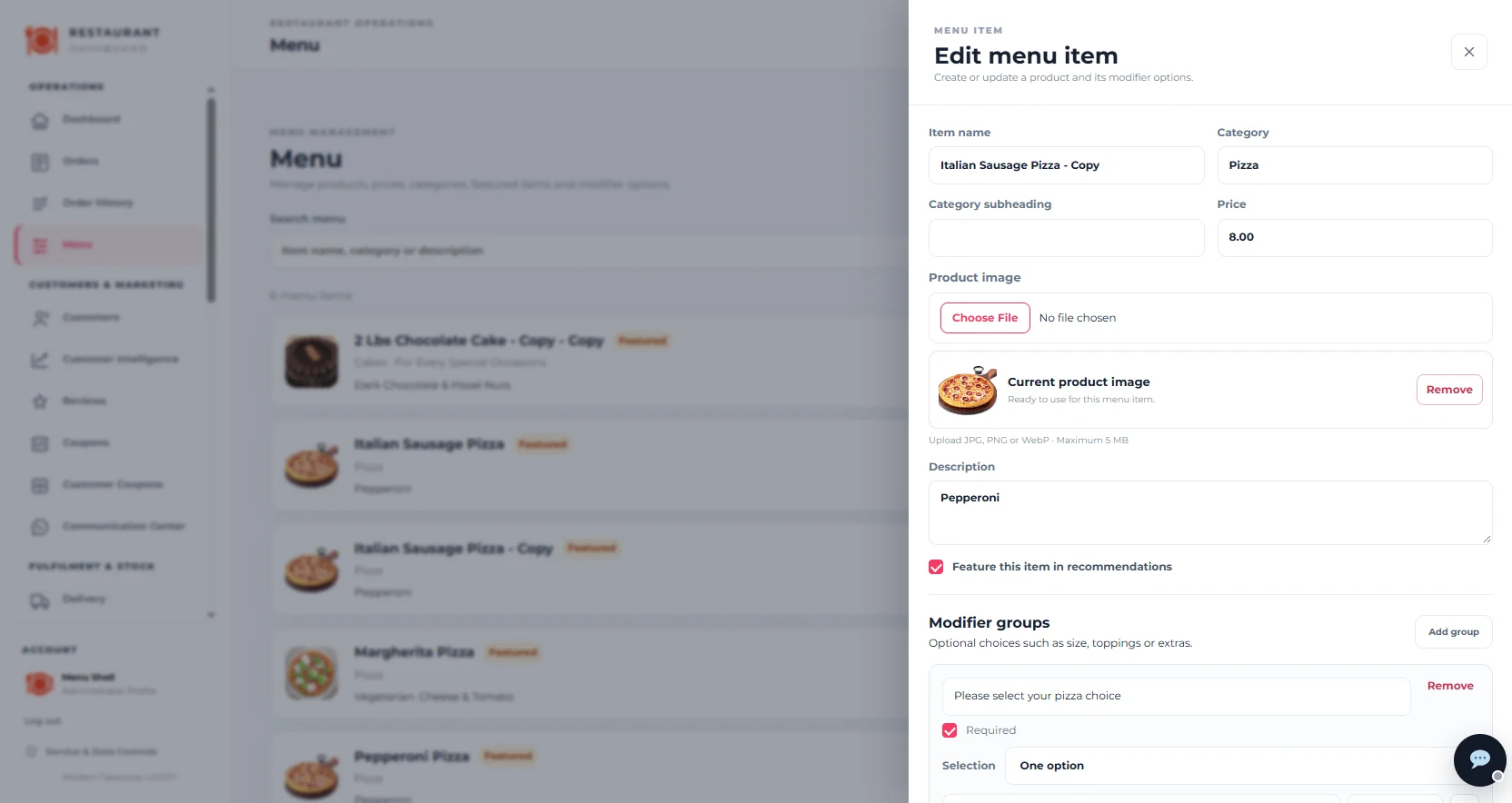
Select Duplicate beside the source item. Menushell immediately opens the duplicated product in the Edit menu item side modal so you can review it before continuing.
Step 3 — Rename the copied item
The duplicated product is distinguished from the original with – Copy in its item name. Replace the copied name with the final customer-facing product name before saving.
Do not leave “- Copy” in the name unless that wording is genuinely intended to appear for customers.
Step 4 — Review the Category and Category subheading
Confirm that the copied Category is correct for the new product. Review the Category subheading as well and change it only when necessary.
Step 5 — Review the Price
Check the copied base price and enter the correct selling price for the new item. Do not assume the original product’s price is appropriate for the duplicate.
Step 6 — Review the Product image
Check the current product image shown in the modal. Keep it only when it is appropriate for the new product. Otherwise choose a replacement image or remove the existing image.
Replacement product images should be JPG, PNG or WebP and no larger than 5 MB.
Step 7 — Review the Description
Update the copied description so it accurately describes the new product. Pay particular attention to ingredients and other information customers use when choosing what to order.
Step 8 — Check the Featured recommendation setting
Review Feature this item in recommendations. A copied item may retain the source product’s recommendation configuration, so make sure the setting is appropriate for the new product.
Step 9 — Carefully review Modifier Groups
Review every modifier group shown on the duplicated product, including group names, Required settings, Selection rules, option names and additional prices.
Do not assume copied modifiers are correct for the new item. An incorrect required choice or additional price can directly affect the customer’s order and total.
If the new item needs different product choices, update the copied groups using the dedicated Modifier Groups guide.
Step 10 — Save the duplicated item
After the name, category, price, image, description, recommendation setting and modifiers have all been reviewed, save the menu item.
How to check it worked
Return to Menu and confirm that the new product appears separately from the original. Check its name, category and price, then open the customer-facing menu and verify the product and its choices when appropriate.
You now have a separate menu item based on the original product’s setup, with the copied details reviewed for the new product.
If the duplicate still says “Copy”
Edit the duplicated product, change Item name to the intended customer-facing name and save it again.
If the duplicate has the wrong image, price or description
Open Edit for the copied item and correct the relevant product fields.
If the duplicate has incorrect choices or additional charges
Open the copied item and review its Modifier Groups. Check Required, Selection and each option price before saving.