
Safely update an existing menu item’s name, category, price, image, description and recommendation setting without unintentionally changing other product configuration.
Before you begin
Open Menu and identify the product you want to change. Check the current item carefully before editing, especially when several products have similar names.
Step 1 — Find the menu item
Use Search menu or the Category filter to locate the product. Select Edit beside the correct item.
Step 2 — Review the existing item before changing anything
The Edit menu item form displays the item’s current information. Review the existing values first so you know exactly what is already configured.
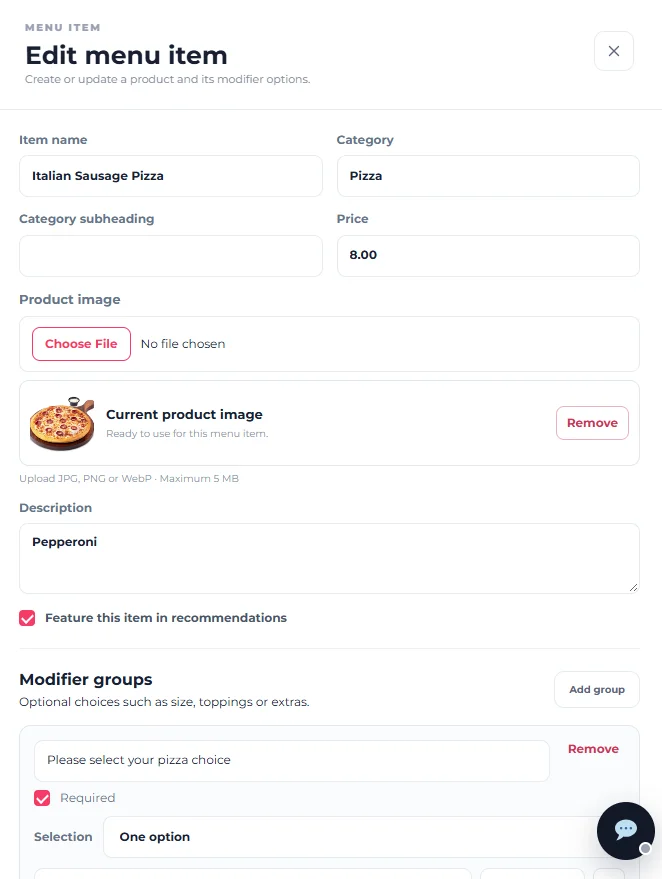
Step 3 — Change the Item name when necessary
Edit Item name when the customer-facing product name needs to change. Keep the name clear and recognisable.
Step 4 — Review the Category
Change Category only when the product should appear in a different menu section. Keep category naming consistent with the rest of your menu.
Changing the Category reorganises where the item belongs. Do not change it simply because you are updating another part of the product.
Step 5 — Review the Category subheading
If a Category subheading is being used, update it only when the related text needs to change. It can remain blank when it is not required.
Step 6 — Update the Price
Enter the new selling amount in Price. Check the value carefully before saving.
The item price uses the restaurant’s configured operating currency. Changing one product’s price does not require changing the restaurant currency.
Step 7 — Replace or remove the Product image
Use Choose File when you want to replace the existing product image. The form shows the current product image so you can confirm what is already in use. Select Remove only when the existing image should be removed.
Product images should be JPG, PNG or WebP and no larger than 5 MB.
Step 8 — Update the Description
Edit Description when ingredients, product details or other customer-facing information has changed. Keep the description useful and concise.
Step 9 — Review Featured recommendations
Check Feature this item in recommendations when the product should be eligible for recommendations. Clear it when the item should no longer be featured.
Step 10 — Do not accidentally change Modifier Groups
Existing modifier groups can appear below the product information. If your task is only to change the product name, category, price, image or description, leave the modifier configuration unchanged.
Modifier Groups can affect required choices and additional charges. Use the dedicated Modifier Groups guide when you intentionally need to change them.
Step 11 — Save the changes
Review every field you changed, then save the menu item. Avoid making unrelated changes during the same edit unless they are intentional.
How to check it worked
Return to Menu, find the item again and confirm its visible name, category and price. Then check the customer-facing menu when the change affects information customers see.
The existing menu item has been updated while its unrelated settings remain unchanged.
If the item appears in the wrong category
Edit the product again, correct its Category, save it and verify the item using the Category filter on the Menu screen.
If the image did not change
Confirm that you selected the intended JPG, PNG or WebP file and that it is no larger than 5 MB. Reopen the item after saving to verify which image is stored.
If the price is incorrect
Reopen the product and check its base Price. If the amount changes only after a customer selects an option, also review the item’s Modifier Groups because modifier option prices can add to the base price.