
Understand the main Store Settings used to identify your restaurant and control its currency, reference location and timezone.
Before you begin
Sign in with your Owner account and open Store Settings. Have your correct restaurant name, operating currency, exact restaurant address and local timezone ready before making changes.
Store Settings contain important restaurant-wide information. Some values affect customer-facing information, order totals, location functions and time-based operations.
Step 1 — Understand the Store Settings screen
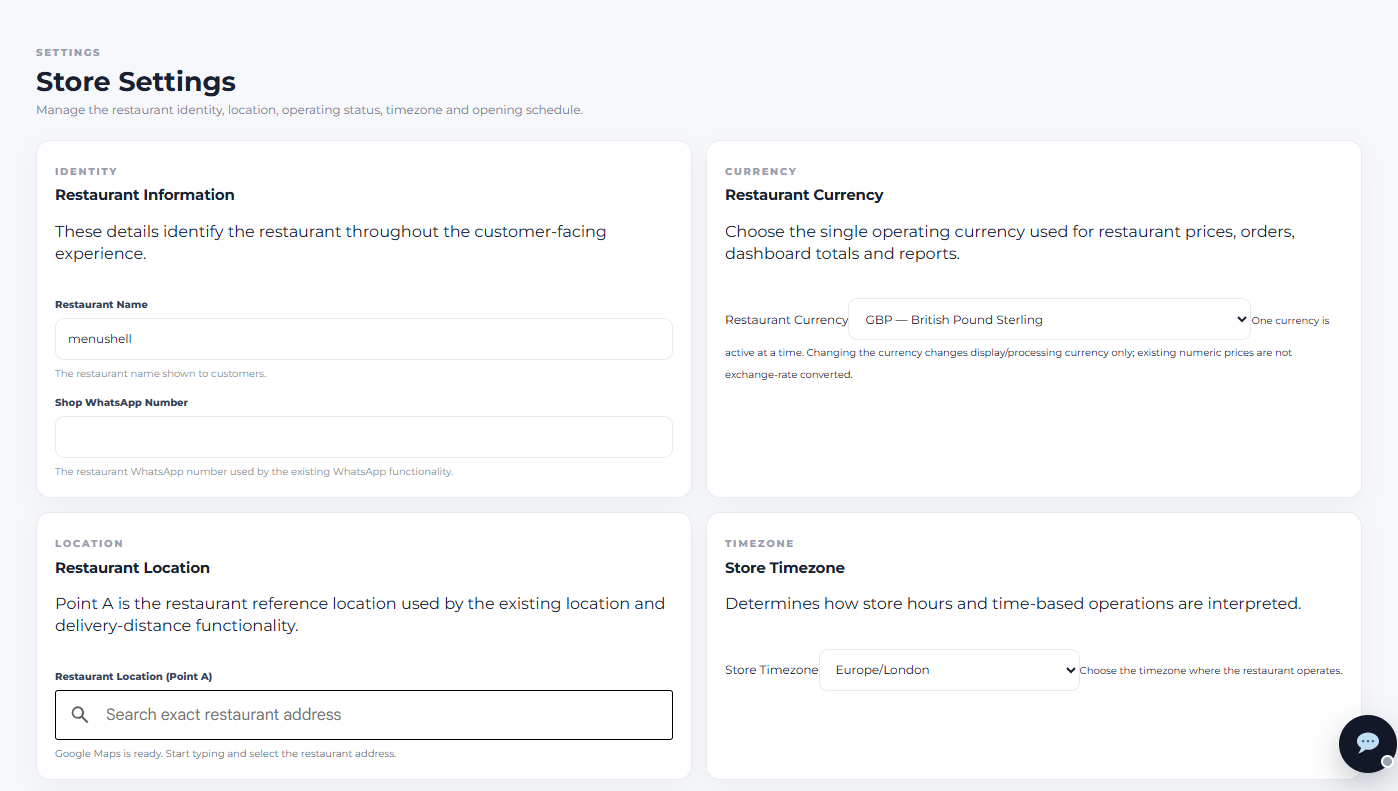
The Store Settings screen groups important restaurant configuration into separate cards. The screen shown below includes Restaurant Information, Restaurant Currency, Restaurant Location and Store Timezone.
Step 2 — Check the Restaurant Name
In Restaurant Information, review the Restaurant Name. This is the restaurant name shown to customers, so enter the business name exactly as you want customers to see it.
Check spelling, spacing and capitalisation before saving. Use the restaurant’s normal customer-facing name rather than an internal nickname.
Step 3 — Add or review the Shop WhatsApp Number
The Shop WhatsApp Number is used by existing WhatsApp functionality. Enter the restaurant number intended for this purpose.
WhatsApp configuration has additional controls and its own detailed guides. Do not change credentials or communication settings simply to test the feature.
Step 4 — Review the Restaurant Currency
Under Restaurant Currency, choose the single operating currency used for restaurant prices, orders, dashboard totals and reports.
Only one restaurant currency is active at a time. Changing the currency changes the display and processing currency; it does not automatically convert existing numeric menu prices using an exchange rate. Review your prices carefully before changing currency.
Step 5 — Set the Restaurant Location (Point A)
Under Restaurant Location, use the address search field to find the restaurant’s exact physical address. Start typing the address and select the correct restaurant address from the available location result.
This location is the restaurant’s Point A reference and is used by existing location and delivery-distance functionality.
Select the exact restaurant location rather than a nearby landmark or approximate area. An incorrect Point A can affect location and delivery-distance behaviour.
Step 6 — Check the Store Timezone
Under Store Timezone, choose the timezone where the restaurant actually operates. The timezone determines how store hours and other time-based operations are interpreted.
If the restaurant operates in a different country or timezone from the person configuring the account, choose the restaurant’s timezone — not the administrator’s current location.
Step 7 — Save your changes
After reviewing the fields you changed, use the save control provided on the Store Settings screen. Wait for the system to confirm the changes before leaving the page.
How to check it worked
Return to Store Settings and confirm that the Restaurant Name, currency, location and timezone display the values you intended. If you changed customer-facing information, review the relevant restaurant ordering experience as an additional check.
Your restaurant’s core Store Settings are now configured and ready for the related Menushell functions.
If the restaurant address cannot be found
Check that the location service is configured and start with a complete street address. If address suggestions do not appear, use the dedicated Google Maps configuration and troubleshooting guides before changing unrelated settings.
If you are unsure about currency or timezone
Do not guess. Confirm the restaurant’s actual operating currency and local timezone first. If you still need help, contact Menushell Support before changing a setting that can affect orders or time-based operations.